← Back to getting started

Treasure It Guide

How to get someone's address

When pickup addresses are shared and how to request them correctly.

How To Get Your Item

Scheduling your pickup

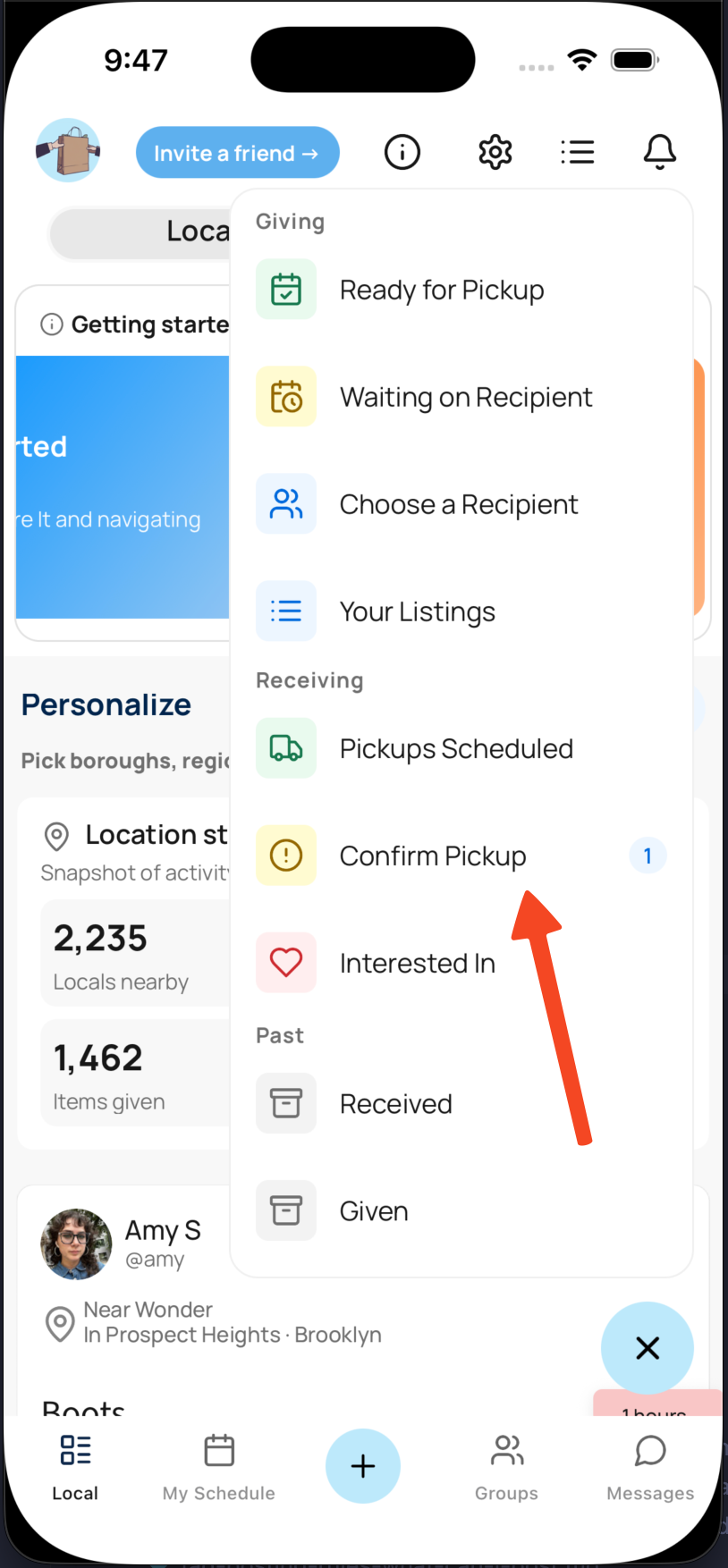
  1. Tap the menu button and Select Confirm Pickup. Screenshot of the home screen menu with Confirm Pickup highlighted.
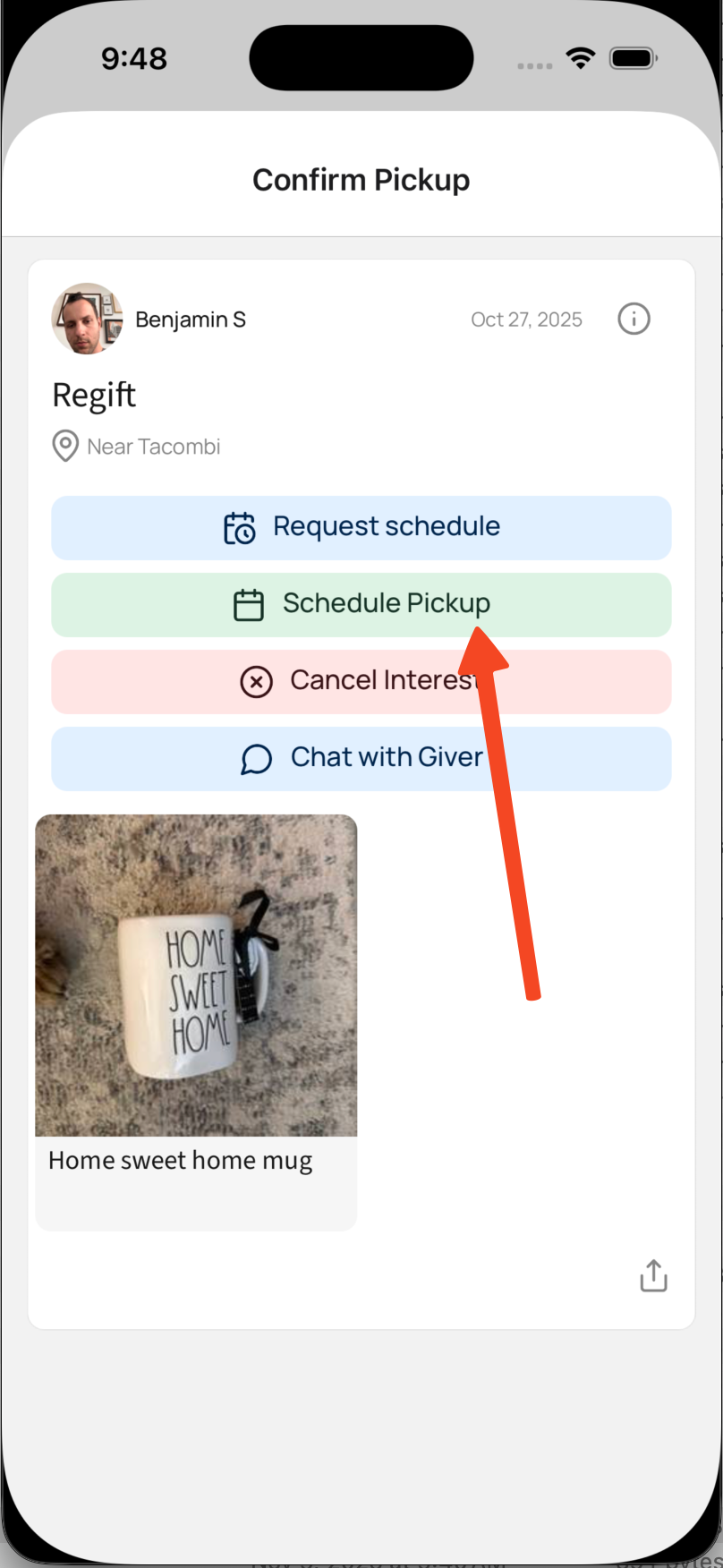
  2. Tap the green "Schedule Pickup" Button Screenshot of the Confirm Pickup screen with the Schedule Pickup button highlighted.
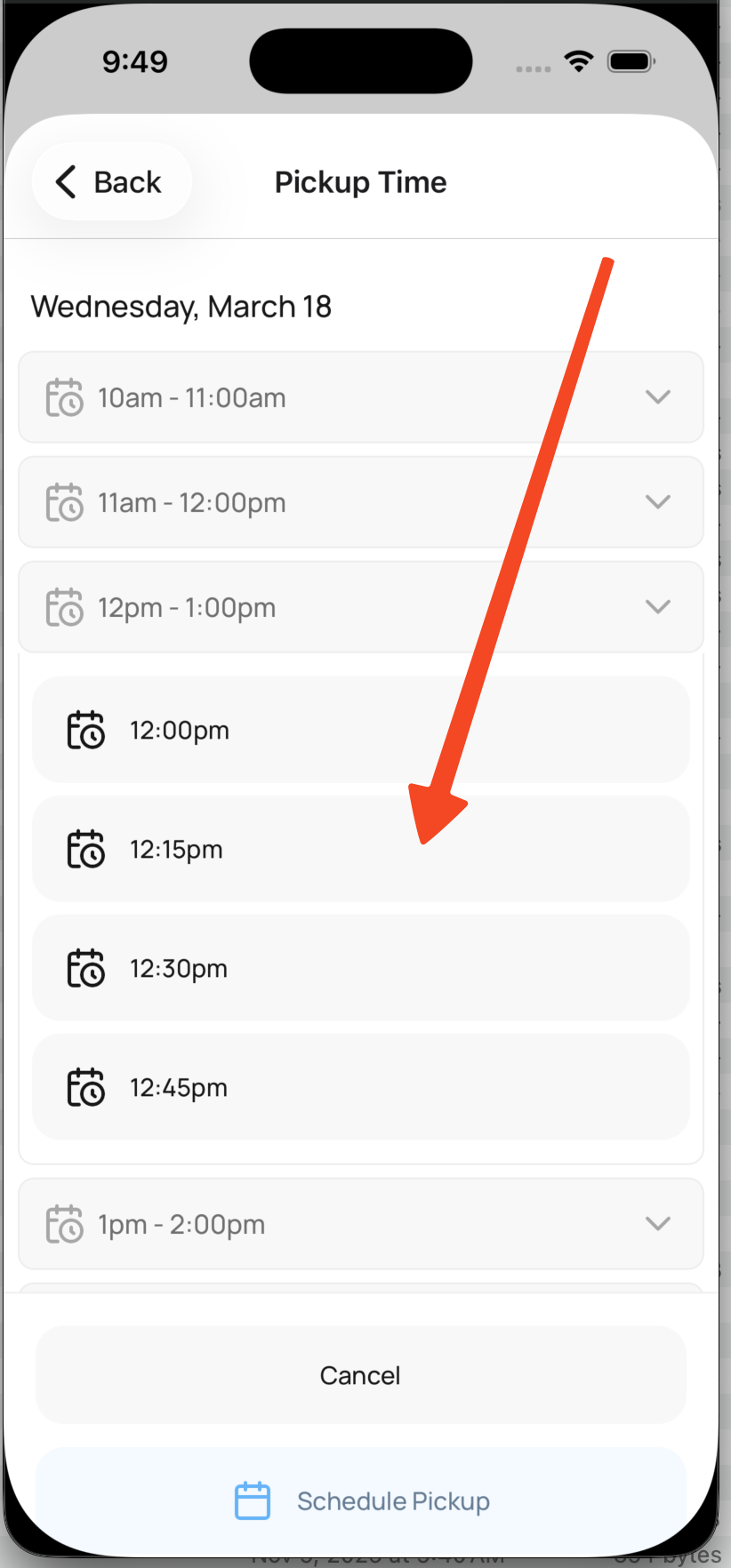
  3. Pick a time from the giver's schedule. If none of the times work, message them politely, asking for additional time. Screenshot of the pickup time selection screen with an available time highlighted.

Your Pickup

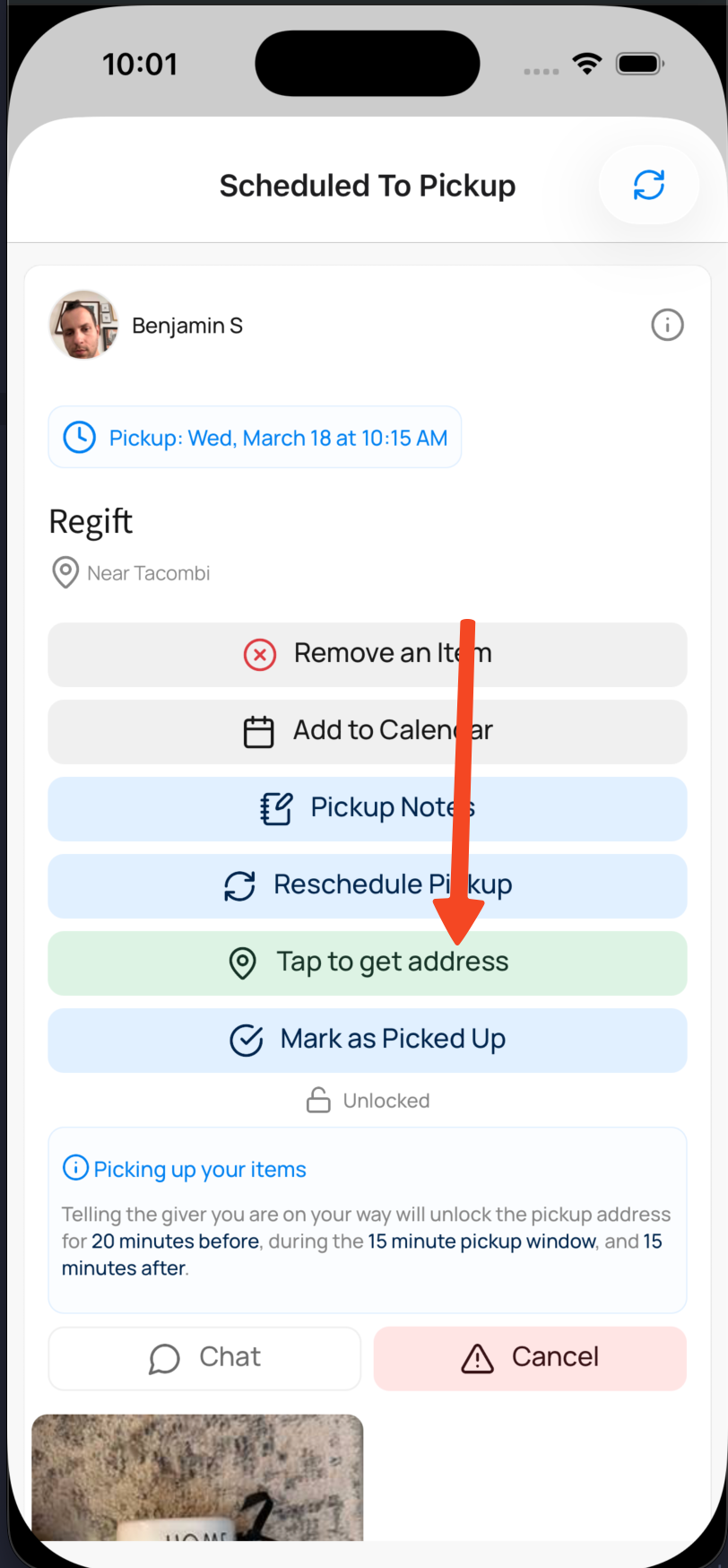
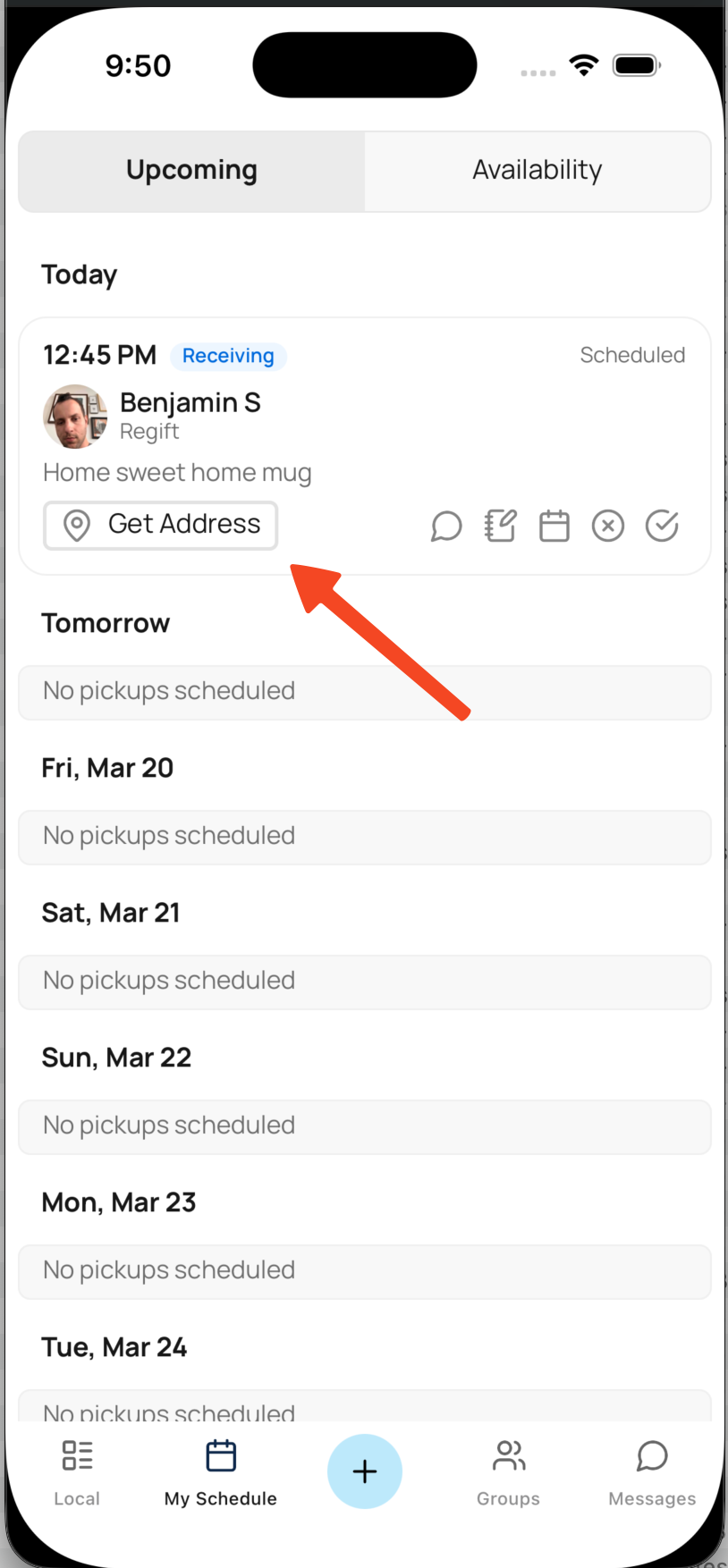
  1. Thirty minutes before pickup, you'll be able to see your giver's address after you give them an ETA. Treasure It will send you a push notification and email to remind you. Screenshot of the Scheduled To Pickup screen with the Tap to get address button highlighted.
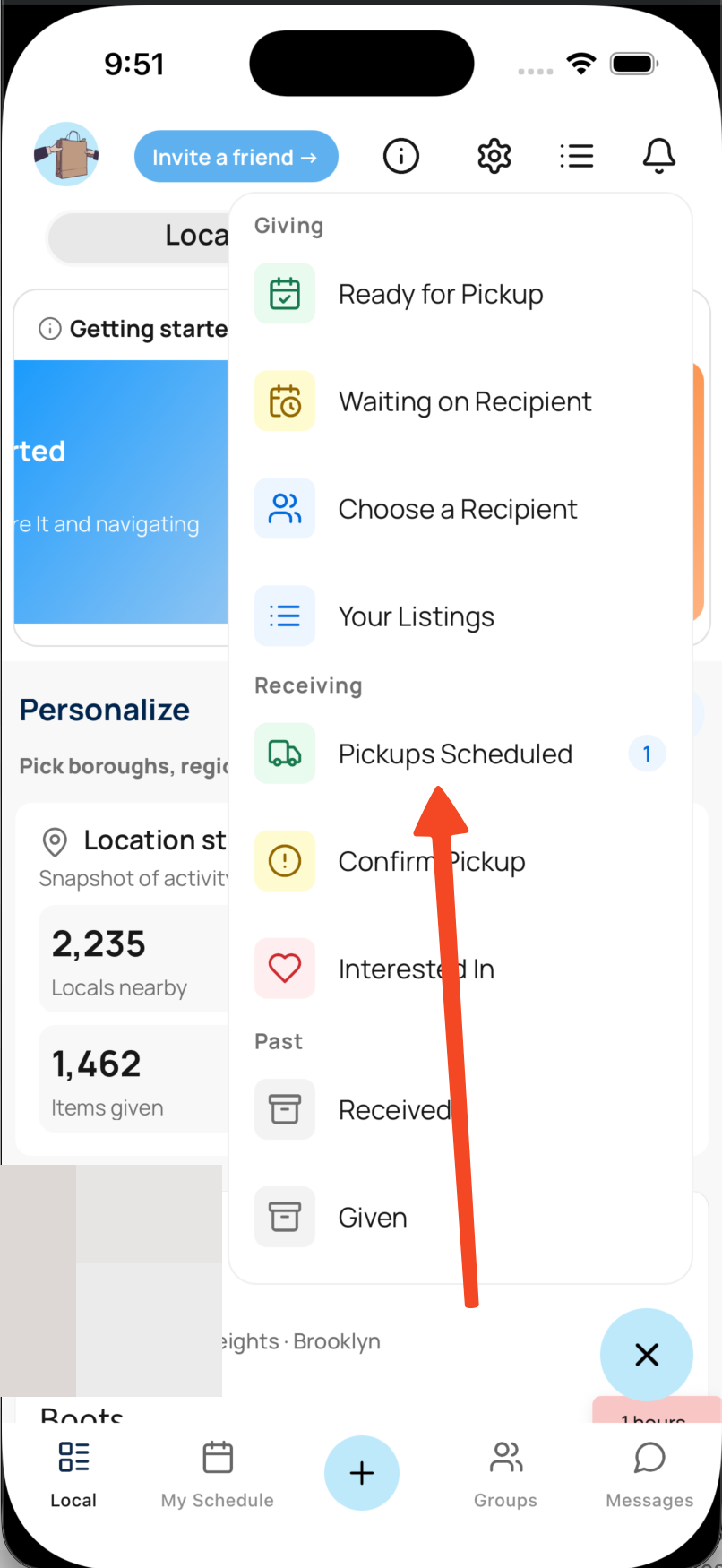
  2. You can get the giver's address in the My Schedule tab or in the Pickups scheduled section in the bottom right menu. Screenshot of the home screen menu with Pickups Scheduled highlighted. Screenshot of the My Schedule tab with the Get Address button highlighted.
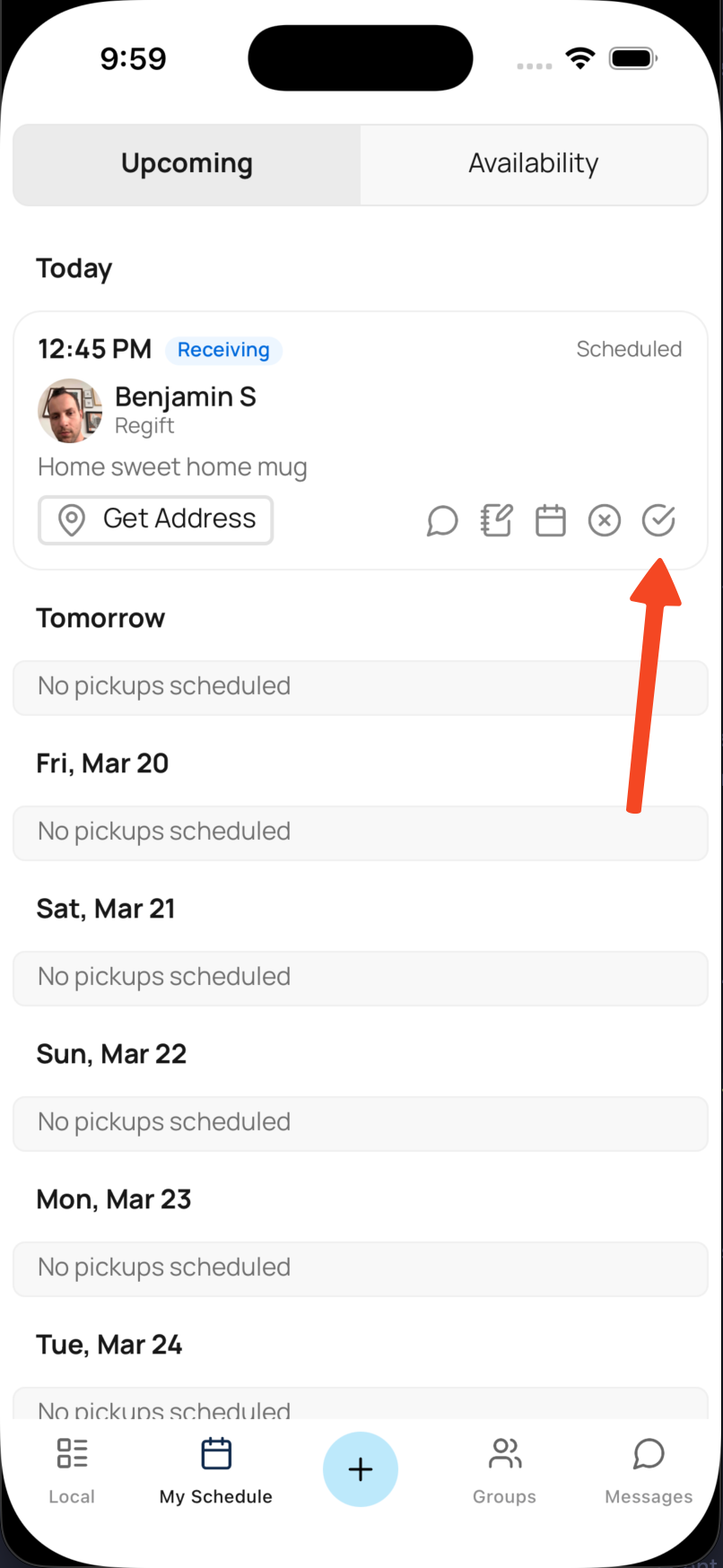
  3. Once you've received your item, mark it as taken. You can do this in the My Schedule tab. Or in the schedule to pick up section in the bottom right menu Screenshot of the My Schedule tab with the Mark as Taken action highlighted.
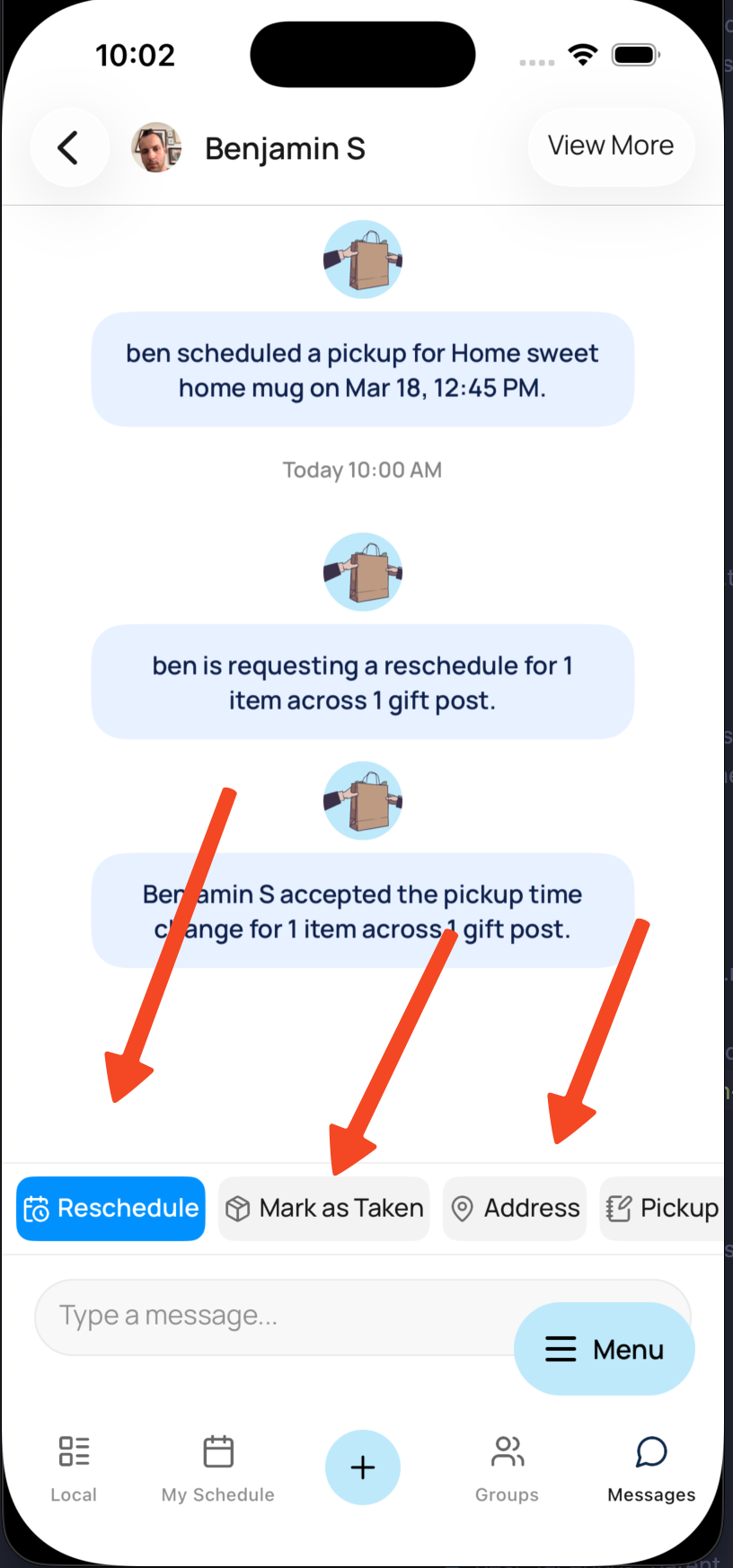
  4. Additionally, all of these actions are also provided in chat with your giver. Screenshot of the chat screen showing the pickup quick actions row.